VPN Microsoft Edge: How to Turn It On and Choose the Right Option
Learn how Microsoft Edge Secure Network works, how to enable it, and when to choose a separate VPN.
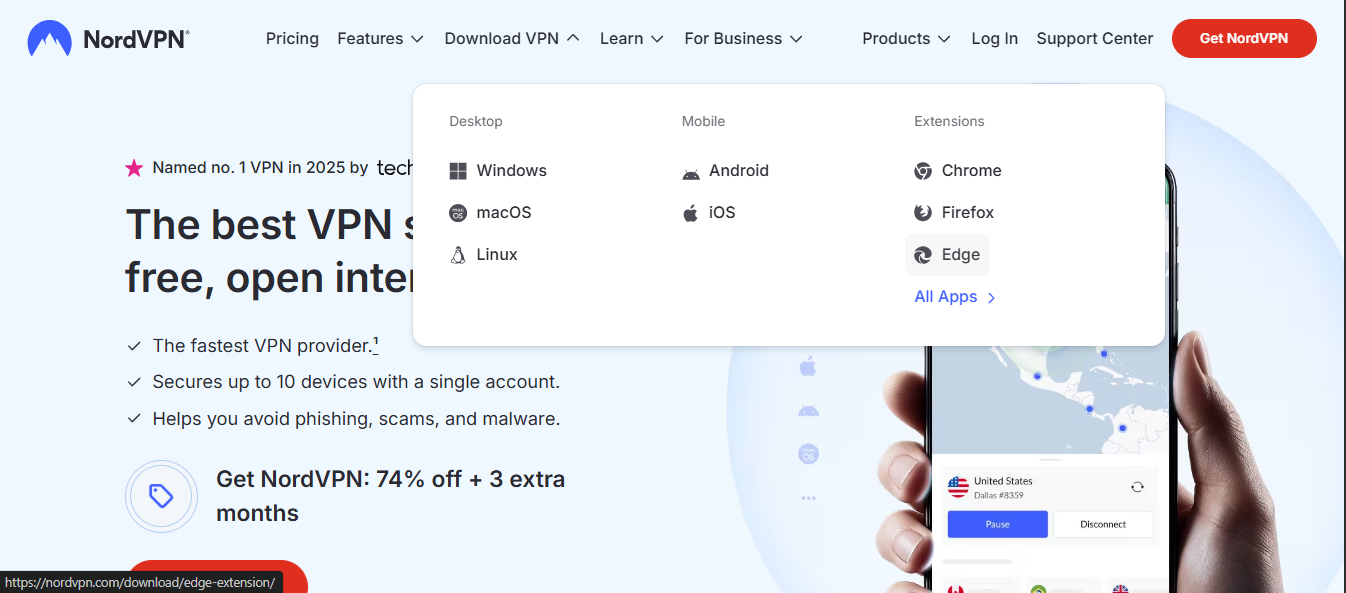
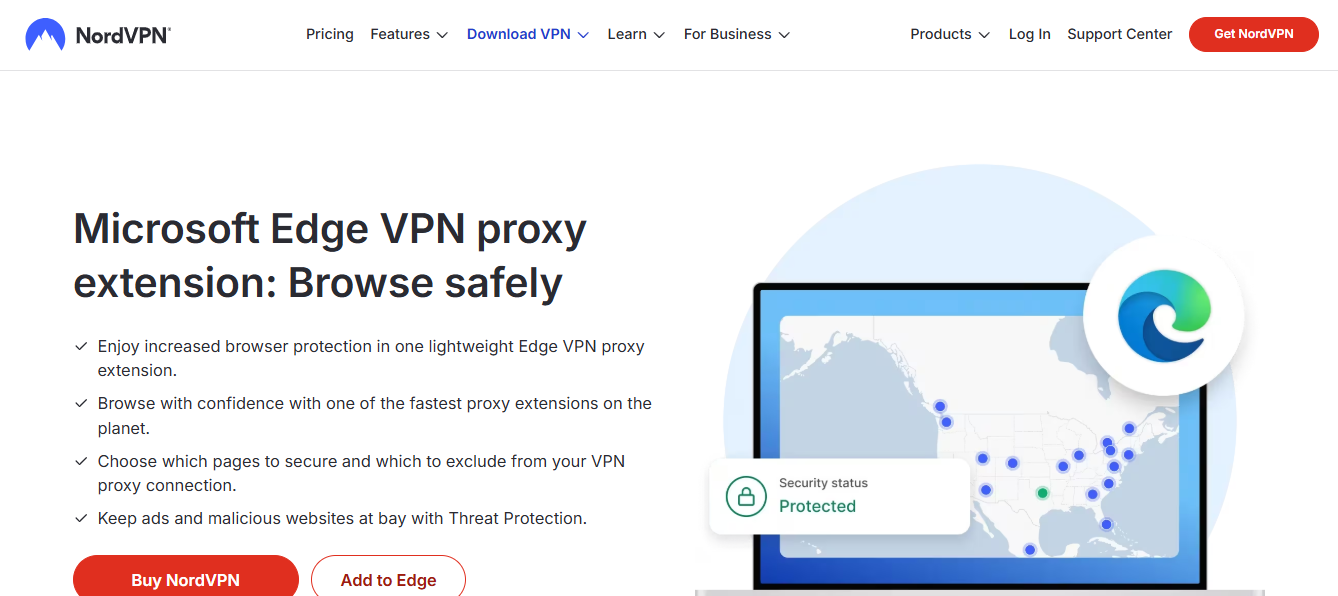
If you’re looking for a VPN for Microsoft Edge, you can use Edge’s built-in Secure Network feature where it’s available, install a VPN extension from Microsoft Edge Add-ons, or use a full VPN app. Secure Network is the simplest option for protected browsing in Edge. An extension is another browser-focused choice, while a VPN app can protect traffic from other apps on your device as well.
Editor's pick: NordVPN — fast, secure VPN — Strong encryption, a no-logs policy and apps for every device. 30-day money-back guarantee. Get NordVPN →
Compare Edge VPN options
| Option | Protects browser traffic | Protects other apps | Requires install | Best for |
|---|---|---|---|---|
| Microsoft Edge Secure Network | Yes | No | No | Basic browser privacy |
| VPN browser extension | Usually browser traffic | No | Yes | Browser-only controls |
| Full VPN app | Yes | Yes | Yes | Device-wide protection |
| Secure Network with Microsoft account | Yes | No | No | Eligible Edge users |
| Extension from VPN provider | Usually browser traffic | No | Yes | Existing VPN customers |
| VPN app with Edge | Yes | Yes | Yes | Travel and public Wi-Fi |
Compiled November 2026; check the provider's site for current details.
| VPN | Obfuscation | From / month | Plan | Free plan | Refund | Alipay | UnionPay | Crypto | Website opens in China | Trustpilot | |
|---|---|---|---|---|---|---|---|---|---|---|---|
 ZoogVPN | Turn on manually Shadow | $2.49/mo | 27 months: $59.99 | Yes | 7 days | ✓ | ✓ | ✓ | ✓ | Official site blocked; our special link opens (4.4 s) | 4.2/5 (195 reviews) |
 NordVPN | Turn on manually Obfuscated Servers / NordWhisper | $3.49/mo | 27 months: $94.23 | No | 30 days | ? | ✗ | ✓ | ✓ | ✗ Blocked | 4.2/5 (51,628 reviews) |
 ExpressVPN | ✓ On by default all servers | $3.00/mo | 28 months: $84 | No | 30 days | ✗ | ✗ | ✓ | ✗ | ✗ Blocked | 4.4/5 (29,706 reviews) |
 Surfshark | ✓ On by default Camouflage, with OpenVPN | See site | See site | No | 30 days | ✗ | ✗ | ✗ | ✓ | ✗ Blocked | 4.3/5 (31,823 reviews) |
 Proton VPN | Turn on manually Stealth, free plan too | $2.99/mo | 12 months: $35.88 | Yes | 30 days | ✗ | ✗ | ✗ | ✓ | ✗ Blocked | 2.1/5 (1,040 reviews) |
 Astrill VPN | Turn on manually StealthVPN / OpenWeb | $12.50/mo | 24 months: $300 | No | See site | ✗ | ✗ | ✗ | ✓ | ✗ Blocked | 1.3/5 (110 reviews) |
 Private Internet Access | Turn on manually Shadowsocks, OpenVPN only | $2.03/mo | 40 months: $81.2 | No | 30 days | ✗ | ✗ | ✗ | ✗ | ✗ Blocked | 4.2/5 (11,033 reviews) |
 CyberGhost | Turn on manually selected servers | $2.19/mo | 28 months: $61.32 | No | 45 days | ✗ | ✗ | ✗ | ✓ | ✗ Blocked | 4.0/5 (24,178 reviews) |
 PureVPN | Turn on manually switch to OpenVPN | $1.69/mo | 60 months: $101.55 | No | 31 days | ? | ? | ✗ | ✓ | ✗ Blocked | 4.4/5 (17,994 reviews) |
 AdGuard VPN | ✓ On by default TrustTunnel | $2.99/mo | 24 months: $71.76 | Yes | 30 days | ✓ | ✗ | ✓ | ✓ | Official site blocked; our special link opens (3.7 s) | 4.3/5 (290 reviews) |
 Mullvad | Turn on manually QUIC / Shadowsocks / LWO | $5.61/mo | €5/mo | No | 14 days | ✗ | ✗ | ✗ | ✓ | ✗ Blocked | 3.2/5 (192 reviews) |
 Windscribe | Turn on manually Stealth / WStunnel | $5.75/mo | 12 months: $69 | Yes | See site | ✗ | ✗ | ✗ | ✓ | ✗ Blocked | 4.7/5 (13,355 reviews) |
 StrongVPN | Turn on manually Scramble, OpenVPN TCP | See site | See site | No | 30 days | ✓ | ✗ | ✗ | ✗ | ✗ Blocked | 4.4/5 (2,695 reviews) |
 LightXtreme 闪连 | Not listed | $7.08/mo | 12 months: $84.99 | Yes | 30 days | ✓ | ✓ | ✓ | ✓ | ✓ Yes (3.5 s) | No page |
Prices checked 2026-11-10 on each vendor's pricing page (cheapest long plan, USD). Check the vendor's checkout for the final price.
Obfuscation checked 2026-11-14 on each vendor's site and help center: "on by default" = nothing to set; "turn on manually" = switch protocol or mode in settings; "not listed" = the vendor describes no obfuscation.
Payment methods checked 2026-11-10 on each vendor's payment pages: all 14 take cards and PayPal; ✗ = not listed, ? = the vendor's own pages disagree.
China access: whether the official website opens from mainland China networks (tests the website only, not the VPN connection). Last checked 2026-11-18 01:02 Beijing time.
Trustpilot score and review count checked 2026-11-10.
What is the VPN in Microsoft Edge?
Microsoft Edge Secure Network is a privacy and security feature built into the browser. It uses VPN technology to help protect your connection while you browse, such as when you’re using an unsecured network.
A VPN routes internet traffic through a VPN service rather than sending it directly from your device to websites. This can help conceal your IP address from the sites you visit and protect data in transit. It does not make you completely anonymous: websites may still identify you through account sign-ins, cookies, or other tracking methods.
Secure Network is designed for browsing in Edge. It isn’t the same as installing a standalone VPN that can protect traffic from every app on your device. Availability, account requirements, and usage limits can vary, so check the current Secure Network settings and Microsoft’s information for your region.
How do I turn on VPN on Microsoft Edge?
If Secure Network is available in your version of Edge, you can usually enable it from the browser settings: Hkmc rndvpn hyundai net: How to Access Hyundai R&D VPN
- Open Microsoft Edge.
- Select the three-dot menu in the upper-right corner.
- Open Settings.
- Look for Privacy, search, and services or a Secure Network setting.
- Turn on Secure Network and follow any prompts to sign in or choose when it should run.
The exact menu names and options may change as Edge updates. If you don’t see Secure Network, update Edge and check again. The feature may not be available to every user or in every location.
Once enabled, review the available controls. Depending on the version, you may be able to choose whether protection runs automatically or only in certain browsing situations. Don’t assume it’s active just because the setting exists. Check the browser’s indicator or settings to confirm its status.
Secure Network, extension, or full VPN app?
The best choice depends on what you need to protect. A VPN extension generally operates within the browser, while a full VPN app is intended to cover more of your device’s internet traffic.
| Option | Typical coverage | Useful for | Check before using |
|---|---|---|---|
| Edge Secure Network | Browsing in Edge | A convenient built-in privacy feature | Availability, limits, and settings |
| VPN extension | Browser traffic, depending on the extension | A quick browser-based setup | Permissions, privacy policy, and provider |
| Full VPN app | Traffic across the device, depending on configuration | Protecting multiple apps and connections | Supported devices, features, and terms |
A browser extension may be easier to manage than a separate app, but its protection may not extend beyond Edge. A full VPN app may offer broader coverage and more controls, though it requires installing and configuring additional software. IPVanish Login: How to Sign In and Fix Common Problems
Whichever option you choose, remember that a VPN does not replace safe browsing habits, antivirus protection, or strong account security.
Choose an option by need
| Your need | Secure Network | Browser extension | Full VPN app |
|---|---|---|---|
| Protect Edge traffic | Yes | Usually | Yes |
| Protect other browsers | No | Usually no | Yes |
| Protect non-browser apps | No | No | Yes |
| Avoid installing software | Yes | No | No |
| Choose a VPN server location | Limited | Provider-dependent | Usually |
| Use provider-wide features | No | Sometimes | Usually |
Compiled November 2026; check the provider's site for current details.
Is there a free VPN option for Microsoft Edge?
Yes. Edge offers Secure Network where available, and the Microsoft Edge Add-ons store lists VPN extensions. For example, VeePN advertises a free VPN extension for Edge. Features and terms differ by provider, so don’t treat “free” as a guarantee of unlimited access, strong privacy, or every feature you may expect. Free VPN: How to Choose One That’s Safe and Useful
Before installing an extension, look at:
- The publisher and reviews: Confirm you’re choosing the intended provider and check recent feedback.
- Permissions: Be cautious if an extension requests access that seems unrelated to its purpose.
- Privacy terms: Find out what data may be collected, stored, or shared.
- Limits and features: Check data allowances, server choices, connection options, and whether important features require a paid plan.
- Support and updates: A maintained extension with clear support information is preferable to one that appears abandoned.
Use the official Microsoft Edge Add-ons store or the provider’s official site to find an extension. Avoid installing a VPN from unfamiliar download pages.
Is Microsoft Edge’s built-in VPN good?
Secure Network can be a convenient option if you want a built-in way to add protection while browsing in Edge. You don’t need to find and install a separate browser extension to try it. Whether it’s suitable for you depends on its current availability, limits, privacy terms, and the level of control you need.
Consider a different option if you need protection for apps outside Edge, more control over VPN locations, or features that Secure Network doesn’t provide. A separate VPN app may be a better fit for device-wide coverage. If you only want browser-level protection, compare Secure Network with reputable extensions and review their policies carefully. Sslvpn poscoenc.com: How to Find the Official POSCO E&C VPN Access
No VPN can guarantee complete privacy. A VPN provider may be able to process connection information, and websites can still track activity through methods unrelated to your IP address. Read the provider’s privacy information rather than relying on marketing claims such as “no logs” alone.
Check before choosing
| Check | Secure Network | Extension | Full VPN app |
|---|---|---|---|
| Availability | Check Edge settings | Check extension store | Check provider |
| Account needed | Microsoft account may be needed | Provider-dependent | Provider-dependent |
| Scope of protection | Edge traffic | Usually browser traffic | Device traffic |
| Server choice | Limited | Provider-dependent | Usually available |
| Setup location | Edge settings | Edge extensions | Operating system or app |
| Good fit | Simple browser use | Browser-specific controls | Broader privacy needs |
Compiled November 2026; check the provider's site for current details.
Recommendation
Start with Edge Secure Network if it’s available and your goal is a convenient way to help protect browsing in Edge. If you install an extension, choose it from the official Add-ons store and check its permissions, privacy terms, and limits. Choose a full VPN app when you need coverage beyond the browser. Free VPN Extension Edge: How to Choose and Use One Safely
Before relying on any option, confirm that it’s switched on and understand exactly which traffic it protects.
Zeynep VPN hizmetlerini test eder.