Tuxler VPN Extension: How It Works, Setup, and What to Know
Learn what the Tuxler VPN extension does, how to install it, and how its browser-only and Premium requirements affect your choice.
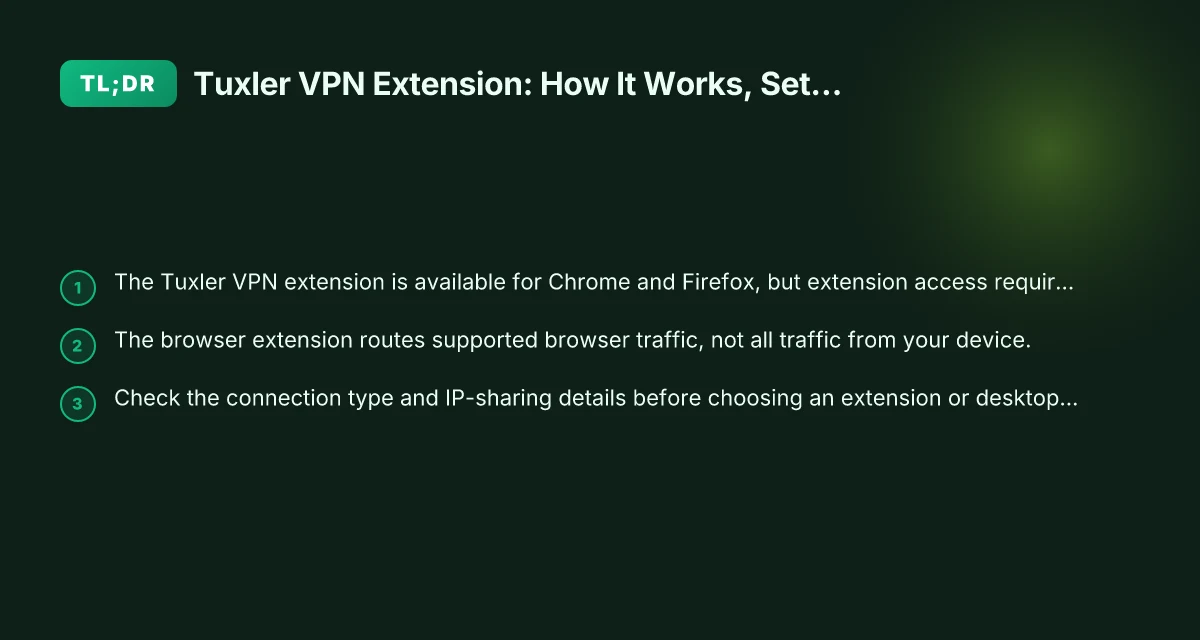
The Tuxler VPN extension is a browser-based way to connect through supported Tuxler locations. It is not a whole-device VPN: the Chrome extension routes supported Chrome traffic, while other apps and browser traffic outside its coverage may use your regular connection. Tuxler’s current information says an active Premium subscription is required for its Chrome and Firefox extensions, so check the latest terms before installing.
Editor's pick: NordVPN — fast, secure VPN — Strong encryption, a no-logs policy and apps for every device. 30-day money-back guarantee. Get NordVPN →
Compare Tuxler’s extension and desktop app
| Factor | Browser extension | Desktop app |
|---|---|---|
| Where it runs | In a supported browser | On the computer |
| Traffic covered | Browser traffic | Device traffic, depending on settings |
| Setup | Install from browser store | Download and install app |
| Switching locations | In extension | In app |
| Browser required | Yes | No |
| Works outside browser | No | Potentially |
| Best suited to | Browser-only use | Broader device use |
| Check before choosing | Browser compatibility | Operating system compatibility |
Compiled November 2026; check the provider's site for current details.
| VPN | Obfuscation | From / month | Plan | Free plan | Refund | Alipay | UnionPay | Crypto | Website opens in China | Trustpilot | |
|---|---|---|---|---|---|---|---|---|---|---|---|
 ZoogVPN | Turn on manually Shadow | $2.49/mo | 27 months: $59.99 | Yes | 7 days | ✓ | ✓ | ✓ | ✓ | Official site blocked; our special link opens (4.4 s) | 4.2/5 (195 reviews) |
 NordVPN | Turn on manually Obfuscated Servers / NordWhisper | $3.49/mo | 27 months: $94.23 | No | 30 days | ? | ✗ | ✓ | ✓ | ✗ Blocked | 4.2/5 (51,628 reviews) |
 ExpressVPN | ✓ On by default all servers | $3.00/mo | 28 months: $84 | No | 30 days | ✗ | ✗ | ✓ | ✗ | ✗ Blocked | 4.4/5 (29,706 reviews) |
 Surfshark | ✓ On by default Camouflage, with OpenVPN | See site | See site | No | 30 days | ✗ | ✗ | ✗ | ✓ | ✗ Blocked | 4.3/5 (31,823 reviews) |
 Proton VPN | Turn on manually Stealth, free plan too | $2.99/mo | 12 months: $35.88 | Yes | 30 days | ✗ | ✗ | ✗ | ✓ | ✗ Blocked | 2.1/5 (1,040 reviews) |
 Astrill VPN | Turn on manually StealthVPN / OpenWeb | $12.50/mo | 24 months: $300 | No | See site | ✗ | ✗ | ✗ | ✓ | ✗ Blocked | 1.3/5 (110 reviews) |
 Private Internet Access | Turn on manually Shadowsocks, OpenVPN only | $2.03/mo | 40 months: $81.2 | No | 30 days | ✗ | ✗ | ✗ | ✗ | ✗ Blocked | 4.2/5 (11,033 reviews) |
 CyberGhost | Turn on manually selected servers | $2.19/mo | 28 months: $61.32 | No | 45 days | ✗ | ✗ | ✗ | ✓ | ✗ Blocked | 4.0/5 (24,178 reviews) |
 PureVPN | Turn on manually switch to OpenVPN | $1.69/mo | 60 months: $101.55 | No | 31 days | ? | ? | ✗ | ✓ | ✗ Blocked | 4.4/5 (17,994 reviews) |
 AdGuard VPN | ✓ On by default TrustTunnel | $2.99/mo | 24 months: $71.76 | Yes | 30 days | ✓ | ✗ | ✓ | ✓ | Official site blocked; our special link opens (3.7 s) | 4.3/5 (290 reviews) |
 Mullvad | Turn on manually QUIC / Shadowsocks / LWO | $5.61/mo | €5/mo | No | 14 days | ✗ | ✗ | ✗ | ✓ | ✗ Blocked | 3.2/5 (192 reviews) |
 Windscribe | Turn on manually Stealth / WStunnel | $5.75/mo | 12 months: $69 | Yes | See site | ✗ | ✗ | ✗ | ✓ | ✗ Blocked | 4.7/5 (13,355 reviews) |
 StrongVPN | Turn on manually Scramble, OpenVPN TCP | See site | See site | No | 30 days | ✓ | ✗ | ✗ | ✗ | ✗ Blocked | 4.4/5 (2,695 reviews) |
 LightXtreme 闪连 | Not listed | $7.08/mo | 12 months: $84.99 | Yes | 30 days | ✓ | ✓ | ✓ | ✓ | ✓ Yes (3.5 s) | No page |
Prices checked 2026-11-10 on each vendor's pricing page (cheapest long plan, USD). Check the vendor's checkout for the final price.
Obfuscation checked 2026-11-14 on each vendor's site and help center: "on by default" = nothing to set; "turn on manually" = switch protocol or mode in settings; "not listed" = the vendor describes no obfuscation.
Payment methods checked 2026-11-10 on each vendor's payment pages: all 14 take cards and PayPal; ✗ = not listed, ? = the vendor's own pages disagree.
China access: whether the official website opens from mainland China networks (tests the website only, not the VPN connection). Last checked 2026-11-18 01:02 Beijing time.
Trustpilot score and review count checked 2026-11-10.
What is the Tuxler VPN extension?
Tuxler describes its service as a residential VPN with worldwide connectivity and location choices across supported countries. The Chrome Web Store listing promotes a community-powered network with a large choice of locations. However, the extension-specific guidance says Chrome uses Premium data-center locations. The Firefox download page likewise says Premium is required and describes access to supported data-center locations.
That distinction matters: “residential VPN” describes Tuxler’s broader service, but it does not mean every browser-extension connection is residential. Check the connection type shown in the product details and the app before relying on a particular location or network category.
The extension is best understood as a browser proxy or VPN-style connection for supported browser traffic. It can be useful when you want to change the apparent location of browser activity, but it should not be treated as a replacement for a device-wide VPN if you need other applications covered too.
How to install and use it
For Chrome, Tuxler provides an extension through the Chrome Web Store and installation instructions on its website. For Firefox, it provides a separate browser extension. Use the official store or Tuxler’s own download page rather than links from unfamiliar third-party sites. IPsec VPN: How It Works, Benefits, and When to Use It
A typical setup looks like this:
- Open the official Tuxler extension page for your browser.
- Review the permissions and current subscription requirements.
- Add the extension to the browser and sign in or follow the setup prompts.
- Choose an available location and connect.
- Check your apparent IP address and location using a reputable IP-checking page.
- Disconnect when you no longer need the connection.
The exact interface and available locations can change. If the extension does not connect, check that your account has the required Premium access, that the browser is supported, and that the extension is up to date.
Extension versus desktop app
The main practical difference is coverage. A browser extension is convenient for browser activity, while a desktop VPN app is generally the more appropriate option when you want VPN coverage beyond one browser. Tuxler says its standard Chrome version needs the Windows desktop app. Its Chrome extension is described as being for Premium data-center locations.
| Option | Coverage and connection details | What to check |
|---|---|---|
| Tuxler Chrome extension | Supported Chrome traffic; Tuxler says Premium is required and describes the extension as using data-center locations | Subscription, permissions, location availability |
| Tuxler Firefox extension | Browser extension for supported Firefox traffic; Premium is required and supported data-center locations are listed | Browser compatibility and current plan requirements |
| Tuxler desktop app | Intended for use through a desktop application; the standard Chrome version requires the Windows desktop app | Operating-system support and which apps are covered |
A browser extension can be simpler if your goal is limited to browser use. If you need coverage for applications such as messaging, gaming, or desktop software, confirm that the desktop app supports your device and routes the traffic you care about. Do not assume an extension protects every connection on your computer. Urban VPN Extension for Edge: How to Install and Use It
Tuxler extension setup and use checklist
| Step | What to do | What to check |
|---|---|---|
| 1. Find the extension | Search the browser’s extension store | Publisher and listing |
| 2. Install | Add it to the browser | Requested permissions |
| 3. Open it | Select its toolbar icon | Sign-in or setup prompts |
| 4. Connect | Choose a location and connect | Connection status |
| 5. Test | Visit an IP-checking site | Whether the IP changed |
| 6. Browse | Use the browser as usual | Whether sites still load |
| 7. Disconnect | Turn off the connection | Whether normal access returns |
| 8. Review settings | Check privacy and sharing options | What is enabled |
Compiled November 2026; check the provider's site for current details.
Privacy and IP-sharing questions
Some searchers are concerned that a residential VPN may involve other people using their IP address. A Reddit post reflects that concern, but a forum post alone does not establish how Tuxler’s current network works or what applies to a particular extension version.
Tuxler’s Firefox page specifically says its browser extension never acts as a shared connection. That is useful information for Firefox users, but it should not automatically be generalized to every product, plan, or version. For Chrome or the desktop app, consult Tuxler’s current privacy policy and product documentation for clear answers about network participation, data handling, and whether your connection can be shared. Urban VPN Proxy: What It Does, How to Use It, and What to Consider
Before installing any VPN extension, review:
- The permissions it requests and whether they match its stated purpose.
- The privacy policy, including what data may be collected and retained.
- Whether your connection can be used by other network members.
- The extension’s developer and update history in the official browser store.
- Whether the service’s technical limits fit your intended use.
A VPN can change how some traffic is routed, but it does not make you anonymous or protect you from every online risk. Account logins, browser fingerprinting, cookies, and unsafe downloads can still identify or expose you.
When the Tuxler extension may be a good fit
The extension may suit you if you want a browser-level connection, can use Premium, and are comfortable with the locations and connection types currently offered. It may also be convenient for testing how a website appears from a supported location.
It may be a poor fit if you expect a free, whole-device VPN, need every app protected, or require a specific residential location that the extension does not provide. In those cases, compare Tuxler’s desktop option and other services against your needs, and verify coverage and plan details before paying. VPN Microsoft Edge: How to Turn It On and Choose the Right Option
Decide whether the Tuxler extension is a good fit
| Consideration | May be a good fit if… | Think twice if… |
|---|---|---|
| Main use | You want to change browser IP location | You need protection for all device traffic |
| Scope | Browser-only coverage is enough | Apps outside the browser must be covered |
| Privacy | You have reviewed the privacy terms | IP-sharing terms are unclear to you |
| Control | Available location choices suit you | You need specific locations or controls |
| Performance | Your browsing works acceptably | Speed or reliability is critical |
| Compatibility | Your browser is supported | Your browser is unsupported |
| Risk tolerance | You understand the service model | You want a conventional VPN model |
| Recommendation | Test it for low-stakes browsing | Choose another option for sensitive use |
Compiled November 2026; check the provider's site for current details.
Recommendation
Choose the Tuxler VPN extension only if browser-only coverage and its current Premium requirements work for you. Confirm whether the extension uses the connection type you want, read the privacy documentation, and test the connection after setup. If you need protection for traffic beyond the browser, investigate the desktop app instead of assuming the extension covers your whole device.
Aleks gizlilik araçları hakkında yazar.