Forticlientvpninstaller.exe: How to Download and Install FortiClient VPN
Learn what forticlientvpninstaller.exe is, where to get the FortiClient VPN installer safely, and how to install it on Windows.
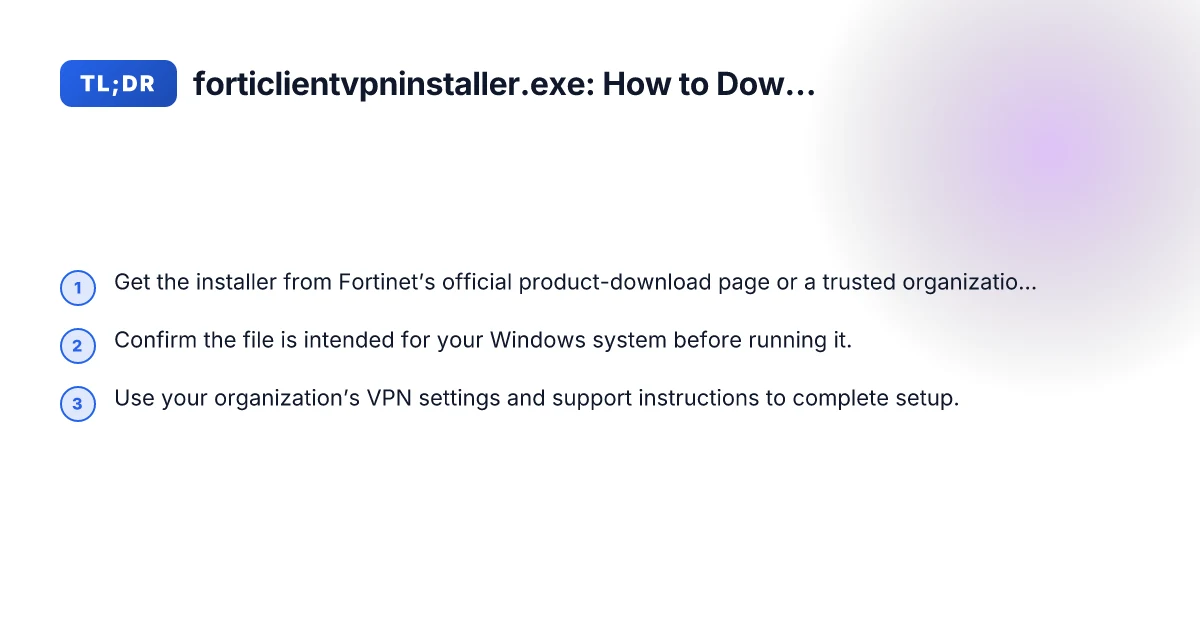
forticlientvpninstaller.exe is a Windows installer file for FortiClient VPN. To install it, download the current VPN installer from Fortinet’s official product-download page, open the downloaded EXE, and follow the setup prompts. Avoid unofficial download links: an executable can make changes to your computer, so its source matters.

Editor's pick: NordVPN — fast, secure VPN — Strong encryption, a no-logs policy and apps for every device. 30-day money-back guarantee. Get NordVPN →
FortiClient VPN download source comparison
| Source | Trust level | Best for | What to check | Main risk |
|---|---|---|---|---|
| Fortinet official website | Preferred | Individual users | Confirm the Fortinet domain | Selecting the wrong product |
| Organization’s IT portal | Preferred when provided by IT | Managed devices | Verify the portal with IT | Outdated package |
| Employer’s software center | Supported for company devices | Company employees | Check package name and publisher | Requires organization access |
| Search engine result | Not verified by itself | Finding the official page | Confirm the destination domain | Sponsored or misleading links |
| Third-party download site | Avoid | None recommended | Prefer an official source instead | Modified or bundled installer |
| Email attachment | Avoid unless verified by IT | IT-directed deployments only | Confirm sender and file details | Unexpected or altered file |
Compiled November 2026; check the provider's site for current details.
| VPN | Obfuscation | From / month | Plan | Free plan | Refund | Alipay | UnionPay | Crypto | Website opens in China | Trustpilot | |
|---|---|---|---|---|---|---|---|---|---|---|---|
 ZoogVPN | Turn on manually Shadow | $2.49/mo | 27 months: $59.99 | Yes | 7 days | ✓ | ✓ | ✓ | ✓ | Official site blocked; our special link opens (4.4 s) | 4.2/5 (195 reviews) |
 NordVPN | Turn on manually Obfuscated Servers / NordWhisper | $3.49/mo | 27 months: $94.23 | No | 30 days | ? | ✗ | ✓ | ✓ | ✗ Blocked | 4.2/5 (51,628 reviews) |
 ExpressVPN | ✓ On by default all servers | $3.00/mo | 28 months: $84 | No | 30 days | ✗ | ✗ | ✓ | ✗ | ✗ Blocked | 4.4/5 (29,706 reviews) |
 Surfshark | ✓ On by default Camouflage, with OpenVPN | See site | See site | No | 30 days | ✗ | ✗ | ✗ | ✓ | ✗ Blocked | 4.3/5 (31,823 reviews) |
 Proton VPN | Turn on manually Stealth, free plan too | $2.99/mo | 12 months: $35.88 | Yes | 30 days | ✗ | ✗ | ✗ | ✓ | ✗ Blocked | 2.1/5 (1,040 reviews) |
 Astrill VPN | Turn on manually StealthVPN / OpenWeb | $12.50/mo | 24 months: $300 | No | See site | ✗ | ✗ | ✗ | ✓ | ✗ Blocked | 1.3/5 (110 reviews) |
 Private Internet Access | Turn on manually Shadowsocks, OpenVPN only | $2.03/mo | 40 months: $81.2 | No | 30 days | ✗ | ✗ | ✗ | ✗ | ✗ Blocked | 4.2/5 (11,033 reviews) |
 CyberGhost | Turn on manually selected servers | $2.19/mo | 28 months: $61.32 | No | 45 days | ✗ | ✗ | ✗ | ✓ | ✗ Blocked | 4.0/5 (24,178 reviews) |
 PureVPN | Turn on manually switch to OpenVPN | $1.69/mo | 60 months: $101.55 | No | 31 days | ? | ? | ✗ | ✓ | ✗ Blocked | 4.4/5 (17,994 reviews) |
 AdGuard VPN | ✓ On by default TrustTunnel | $2.99/mo | 24 months: $71.76 | Yes | 30 days | ✓ | ✗ | ✓ | ✓ | Official site blocked; our special link opens (3.7 s) | 4.3/5 (290 reviews) |
 Mullvad | Turn on manually QUIC / Shadowsocks / LWO | $5.61/mo | €5/mo | No | 14 days | ✗ | ✗ | ✗ | ✓ | ✗ Blocked | 3.2/5 (192 reviews) |
 Windscribe | Turn on manually Stealth / WStunnel | $5.75/mo | 12 months: $69 | Yes | See site | ✗ | ✗ | ✗ | ✓ | ✗ Blocked | 4.7/5 (13,355 reviews) |
 StrongVPN | Turn on manually Scramble, OpenVPN TCP | See site | See site | No | 30 days | ✓ | ✗ | ✗ | ✗ | ✗ Blocked | 4.4/5 (2,695 reviews) |
 LightXtreme 闪连 | Not listed | $7.08/mo | 12 months: $84.99 | Yes | 30 days | ✓ | ✓ | ✓ | ✓ | ✓ Yes (3.5 s) | No page |
Prices checked 2026-11-10 on each vendor's pricing page (cheapest long plan, USD). Check the vendor's checkout for the final price.
Obfuscation checked 2026-11-14 on each vendor's site and help center: "on by default" = nothing to set; "turn on manually" = switch protocol or mode in settings; "not listed" = the vendor describes no obfuscation.
Payment methods checked 2026-11-10 on each vendor's payment pages: all 14 take cards and PayPal; ✗ = not listed, ? = the vendor's own pages disagree.
China access: whether the official website opens from mainland China networks (tests the website only, not the VPN connection). Last checked 2026-11-18 01:02 Beijing time.
Trustpilot score and review count checked 2026-11-10.
What is forticlientvpninstaller.exe?
The filename refers to an executable installer associated with FortiClient VPN. FortiClient is Fortinet software that can provide VPN access, allowing a computer to connect to a network through an organization’s VPN service.
The exact filename may vary by release or download source. Fortinet’s installation documentation also describes EXE installers used for FortiClient deployments, including packages configured with custom modifications. That does not mean every EXE is the same: an organization may provide a package with its own deployment settings.
FortiClient VPN is intended to connect to a VPN service that has already been configured for you. Downloading the program alone does not provide a VPN account, server address, or permission to access a workplace or school network.
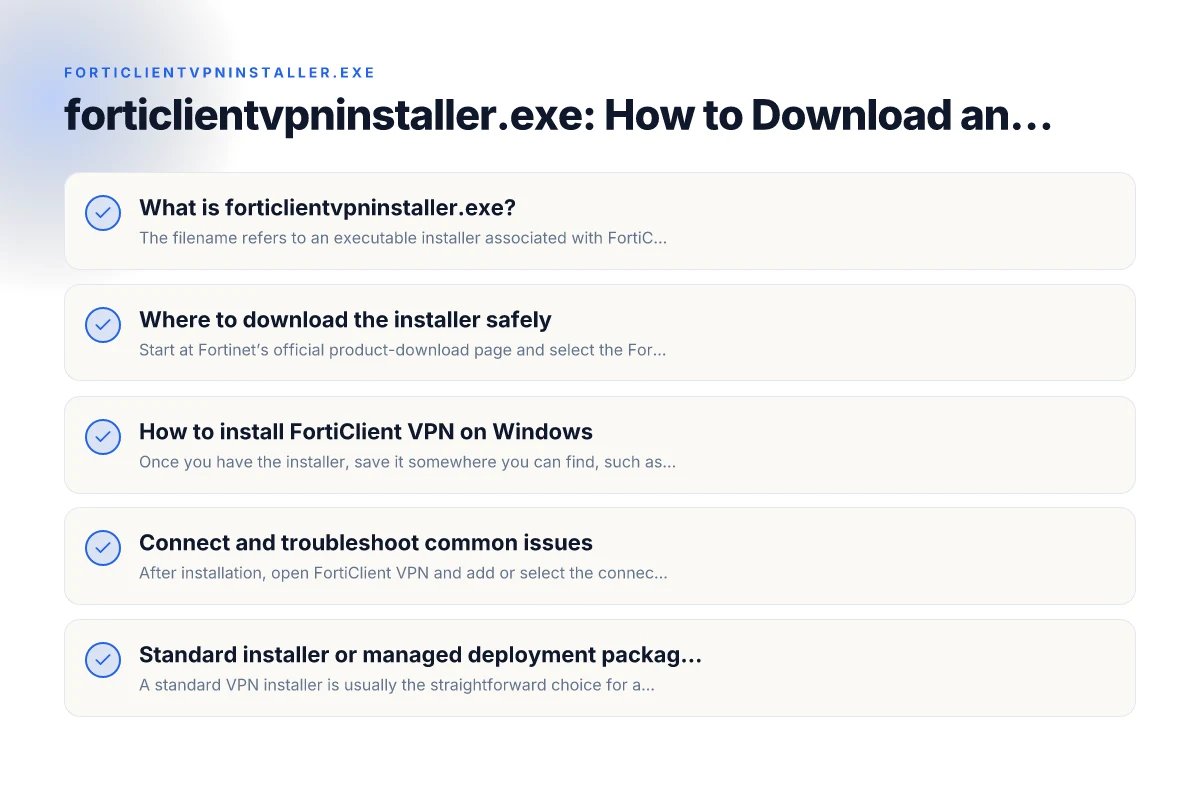
Where to download the installer safely
Start at Fortinet’s official product-download page and select the FortiClient VPN download for your operating system. If your employer, school, or service provider has a software portal, use its instructions instead. It may supply a managed installer or specific configuration steps. VPN to Change Location Free: What Works and What to Check
Search results may also point to third-party download sites, video descriptions, or installer guides. Those sources can help explain a process, but they are not a substitute for confirming that the file came from Fortinet or an organization you trust.
Before opening the installer:
- Check that you reached the download through Fortinet’s official website or a verified organization link.
- Make sure the download is for Windows and matches the system requirements shown by the provider.
- Be cautious if the file arrives unexpectedly by email, or if a page asks you to install unrelated software.
- Follow your organization’s IT guidance if it provides a particular version or package.
| Download source | When it makes sense | What to check |
|---|---|---|
| Fortinet’s official product-download page | You need the standard FortiClient VPN installer | Select the Windows VPN download |
| Employer or school software portal | Your organization manages VPN access | Follow its version and setup instructions |
| Third-party download page | A guide links to a file hosted elsewhere | Verify the source with Fortinet or your IT team before running it |
FortiClient VPN installation and connection checks
| Stage | What to do | Successful result | If it does not work | Who can help |
|---|---|---|---|---|
| Download | Get the installer from Fortinet or an approved IT source | Installer is available | Recheck the source and package | IT or Fortinet |
| File check | Confirm the filename and publisher | File matches the expected package | Do not run an unexpected file | IT |
| Installation | Open the installer and follow its prompts | FortiClient VPN is installed | Check permissions or installation guidance | Device administrator |
| VPN setup | Enter the settings supplied by your organization | Connection profile is saved | Ask IT to verify the settings | Organization’s IT team |
| Sign-in | Use the account and authentication method provided | Authentication succeeds | Check credentials and required approval | Organization’s IT team |
| Connection | Select the configured VPN connection | VPN connects | Check network access and displayed errors | IT or network support |
Compiled November 2026; check the provider's site for current details. How Can I Tell If a VPN Is Blocking My Internet?
How to install FortiClient VPN on Windows
Once you have the installer, save it somewhere you can find, such as your Downloads folder. Close other applications if convenient, then open the EXE and allow it to run only if you trust its source.
Follow the on-screen prompts. The wording and available options can differ between installer versions and managed deployment packages. If you see a choice between FortiClient components, select the VPN option appropriate to your needs and follow any instructions from your organization.
A typical installation process is:
- Download the Windows installer from Fortinet or your organization’s approved portal.
- Open the downloaded EXE.
- Approve the Windows permission prompt if you intended to run the installer and trust its source.
- Follow the setup wizard, reviewing any component or configuration options.
- Finish setup and open FortiClient VPN.
- Enter the connection details supplied by your VPN administrator.
You may need to restart Windows if the installer requests it. Do not guess at server addresses, login details, or security settings. Ask your organization’s help desk for the correct information. NordVPN Windows: How to Download, Install, and Use It
Connect and troubleshoot common issues
After installation, open FortiClient VPN and add or select the connection profile provided by your organization. Sign in using the credentials and any additional verification method required by that service. If you do not have connection details, contact the VPN administrator. The installer does not create them.
If the installer will not run, check that the download completed and that you selected the correct file for your device. If Windows displays a security warning, do not bypass it until you have verified the file’s origin. On a work-managed computer, installation permissions may be restricted, so contact IT rather than trying to work around the restriction.
For connection problems, confirm that:
- You have an active account with VPN access.
- The server or connection profile matches the details supplied by your organization.
- Your username, password, and any multi-factor authentication step are correct.
- Your device has an internet connection.
- Your organization has not directed you to use a different installer or configuration.
Fortinet’s support resources also describe downloading FortiClient and the FCRemove.exe utility through Fortinet Support. Removal tools are intended for specific troubleshooting situations. Do not run one unless Fortinet or your IT team recommends it. Microsoft Edge Secure Network VPN Reviews: Is It Safe and Worth Using?
Standard installer or managed deployment package?
A standard VPN installer is usually the straightforward choice for a personal device when you have been given the connection details. A managed EXE may include custom modifications configured for an organization’s deployment. The right choice depends on who manages your device and VPN access.
If you are unsure which package to use, ask your administrator before installing. Using a package intended for another environment could leave you without the settings needed to connect or conflict with your organization’s device-management policies.
Standard installer or managed deployment package?
| Comparison point | Standard installer | Managed deployment package |
|---|---|---|
| Intended user | Individual or hands-on installation | Organization-managed devices |
| Typical source | Fortinet download page | Organization’s IT team or deployment system |
| Installation control | User follows installer prompts | IT controls or automates deployment |
| Configuration | May require user-entered settings | May include organization-managed settings |
| Administrative involvement | May require device permissions | Usually handled by IT |
| Best choice for personal use | Usually appropriate | Only if provided for personal use |
| Best choice for company device | Use if IT approves it | Usually appropriate when required by IT |
| What to do if unsure | Check Fortinet’s official guidance | Ask IT which package to use |
Compiled November 2026; check the provider's site for current details. Nord VPN in China: Does It Work and How to Prepare
Recommendation
Download forticlientvpninstaller.exe only from Fortinet’s official product-download page or a verified organization portal. Install it using the supplied instructions, and get your VPN profile and login details from the service administrator. If the file’s source or purpose is unclear, do not run it, confirm it with Fortinet or your IT team first.
Zeynep VPN hizmetlerini test eder.